How Browser Extensions Save 5 Hours Per Week
Stop switching tabs and copying job descriptions. Browser extensions can scan job posts in one click, eliminating workflow friction and saving hours every week.
How Browser Extensions Save 5 Hours Per Week
Introduction
Emily, a marketing consultant, is browsing Upwork for new projects. She finds a promising social media management job. She reads the description, then:
- Highlights the job description text
- Right-clicks to copy
- Switches to her proposal document
- Pastes the text
- Realizes she missed the budget info
- Switches back to Upwork
- Scrolls to find budget
- Copies budget
- Switches back to document
- Pastes budget
- Realizes she needs the skills list too
- Switches back again...
By the time she's extracted all the information, she's spent 3-4 minutes just on copy-paste. And she's lost her flow. The job doesn't seem as interesting anymore. Maybe she'll apply later. (She won't.)
This is workflow friction—the small, annoying steps that add up to hours of wasted time and kill your momentum. For freelancers applying to 10-20 jobs per week, copy-paste friction costs 30-100 minutes per week. But more importantly, it kills your motivation to apply.
What if you could eliminate all of that? What if one click could extract everything you need from a job post and have it ready for proposal generation?
The solution is browser extensions that automatically extract job information. In this article, we'll show you how one-click job scanning eliminates workflow friction, saves hours every week, and makes applying to jobs actually enjoyable. We'll use Proposely's extension as an example, but the principles apply to any browser extension approach.
The Problem: Copy-Paste Workflow Friction
The Manual Process
Here's what happens when you manually extract information from a job post:
- Read the job (2-3 minutes)
- Copy job description (30 seconds)
- Switch to proposal tool/document (10 seconds)
- Paste job description (10 seconds)
- Switch back to job post (10 seconds)
- Copy budget information (20 seconds)
- Switch back to proposal tool (10 seconds)
- Paste budget (10 seconds)
- Switch back for skills (10 seconds)
- Copy skills (20 seconds)
- Switch back again (10 seconds)
- Paste skills (10 seconds)
Total friction time: 3-5 minutes per proposal.
The Hidden Costs
But the real cost isn't just time—it's:
1. Context Switching Overhead Every switch between tabs costs mental energy. You lose your flow state. You forget what you were thinking. You have to re-orient yourself.
2. Error Rate 15-20% of proposals have missing information because of copy-paste errors:
- Forgot to copy budget
- Missed skills section
- Incomplete job description
- Wrong information pasted
3. Motivation Loss The friction makes applying feel like a chore. You procrastinate. You skip good opportunities because "it's too much work."
4. Opportunity Cost Time spent on friction is time not spent on:
- Writing better proposals
- Applying to more jobs
- Doing billable work
- Living your life
The Math
For a freelancer applying to 15 jobs per week:
- Friction time: 3-5 minutes × 15 = 45-75 minutes/week
- Annual friction: 39-65 hours/year
- At $75/hour: $2,925-$4,875/year in lost time
But the real cost is the motivation loss and reduced application volume.
Root Causes: Why Copy-Paste Friction Exists
1. Platform Limitations
Job boards like Upwork aren't designed for proposal tools. They're designed for browsing. So you have to:
- Manually extract information
- Switch between platforms
- Copy-paste everything
- Hope you didn't miss anything
2. No Integration
Most proposal tools don't integrate with job boards. They're separate systems. So you're forced to:
- Use one tool to browse
- Use another tool to write
- Manually bridge the gap
3. Information Scattered
Job information is spread across the page:
- Job title at the top
- Description in the middle
- Skills in a sidebar
- Budget in another section
- Timeline somewhere else
You have to hunt for everything.
4. No Automation
There's no way to automate the extraction. Every job requires manual work. Every proposal starts from scratch.
How This Problem Is Solved
One-Click Job Scanning
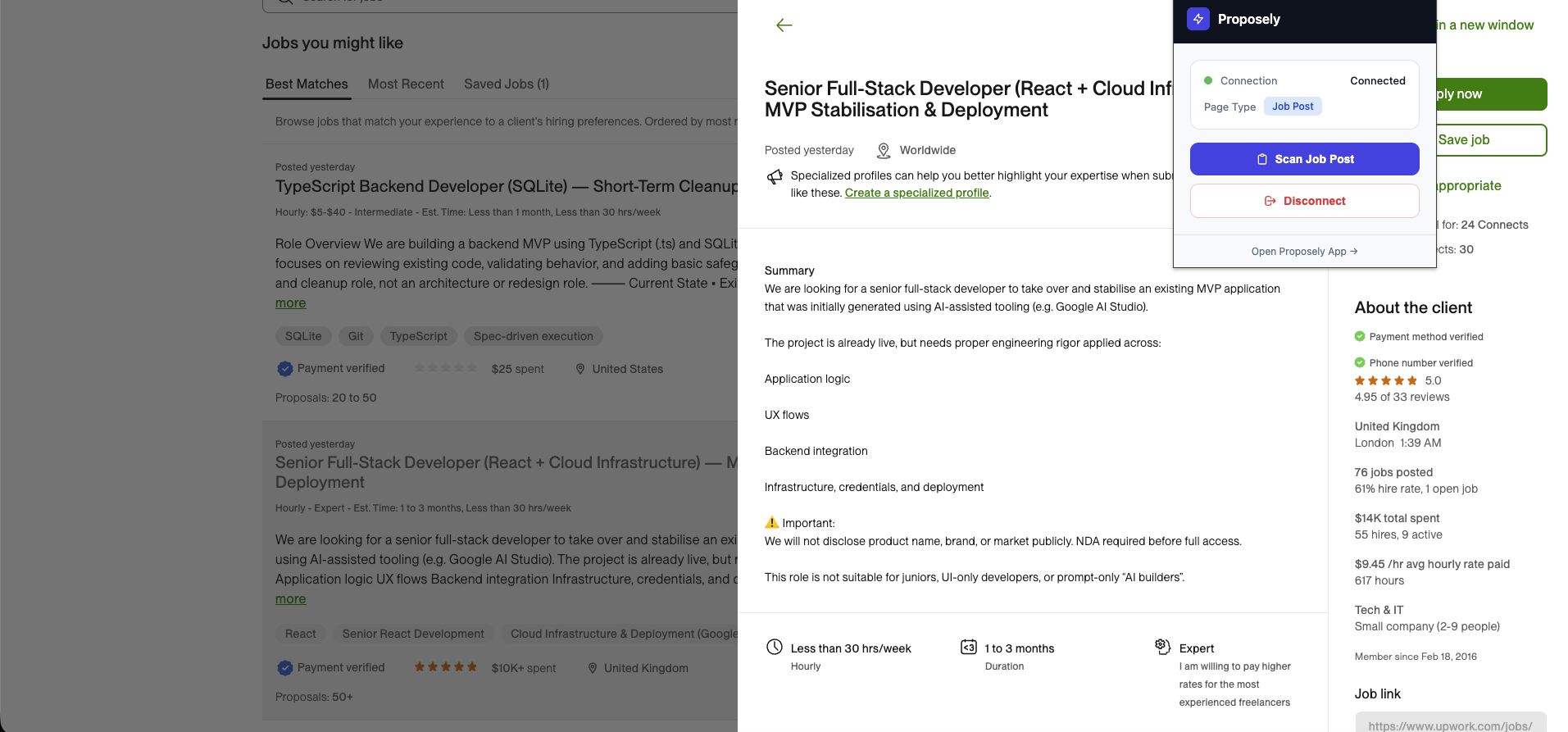
The Proposely browser extension popup on an Upwork job post, showing the "Scan Job Post" button. Browser extensions can automatically extract job details from job boards, eliminating manual copy-paste.
The solution works through browser extensions that read job board pages and extract information automatically. Here's how it works:
- Visit any Upwork job post
- Click the extension icon
- Click "Scan Job Post"
- Done.
That's it. One click. No copy-paste. No switching tabs. No hunting for information. Tools like Proposely implement this through browser extensions that parse the page structure and extract relevant fields.
What Gets Extracted Automatically
The extension automatically extracts:
- Job Title: Full title from the page
- Job Description: Complete description text
- Required Skills: All skills listed in the job
- Budget Information: Hourly rate, fixed price, or budget range
- Timeline: Project duration if mentioned
- Job URL: For reference and tracking
Everything you need, extracted in seconds.
Automatic Form Pre-Filling
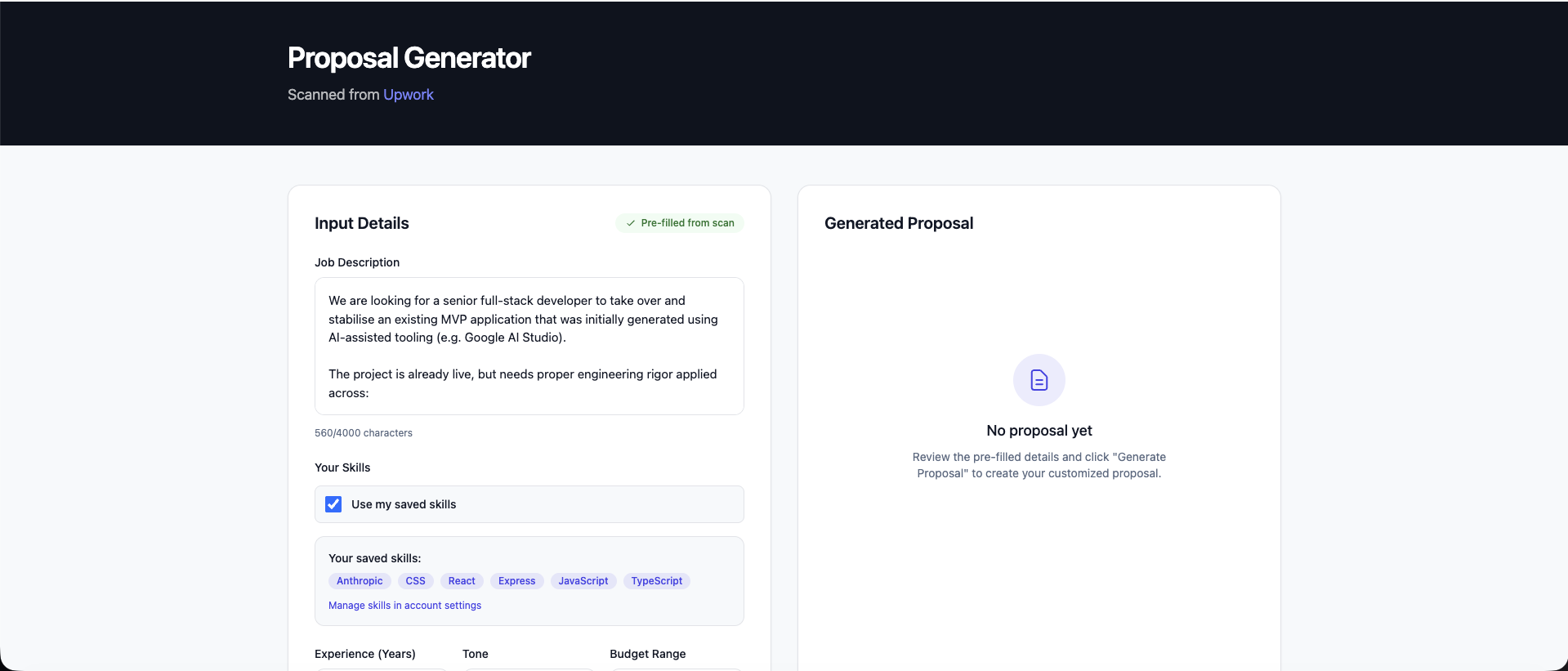
The Proposal Generator interface showing Input Details (left) with pre-filled job description and saved skills, and Generated Proposal section (right). Scanned job data automatically fills your proposal form—no manual entry required.
The scanned data automatically populates your proposal form:
- Job description field: Filled
- Skills detected: Highlighted
- Budget: Pre-filled if available
- Your saved skills: Already loaded
- Your portfolio projects: Ready to match
You just need to:
- Review the pre-filled information
- Click "Generate Proposal"
- Review and customize
- Copy and submit
Total time: 2-5 minutes from job post to proposal ready. This workflow is part of a larger system that can cut proposal writing time by 85-90% while maintaining quality.
Seamless Workflow
Manual Process:
- Browse Upwork (2 min)
- Find job (1 min)
- Read job (2 min)
- Copy description (30 sec)
- Switch to proposal tool (10 sec)
- Paste description (10 sec)
- Switch back for budget (10 sec)
- Copy budget (20 sec)
- Switch back (10 sec)
- Paste budget (10 sec)
- Switch back for skills (10 sec)
- Copy skills (20 sec)
- Switch back (10 sec)
- Paste skills (10 sec)
- Start writing proposal (25 min) Total: 32+ minutes
With Browser Extension:
- Browse Upwork (2 min)
- Find job (1 min)
- Click extension → Scan (5 sec)
- Click "Generate Proposal" (5 sec)
- Review and customize (2-5 min)
- Copy and submit (30 sec) Total: 5-8 minutes
The generated proposals automatically include relevant portfolio projects and follow structured formats that improve response rates.
Universal Compatibility
The extension works with:
- Upwork: Full integration, one-click scanning
- Fiverr: Paste job description manually (extension detects job posts)
- Freelancer.com: Paste job description manually
- LinkedIn: Paste job description manually
- Any job platform: Paste job description manually
Even when you can't scan automatically, structured proposal forms make manual entry fast and easy.
The Results: Eliminated Friction, Recovered Time
Time Savings
- Per Proposal: 3-5 minutes → 10-30 seconds (90% reduction)
- Weekly: 45-75 minutes → 5-10 minutes
- Annual: 39-65 hours → 4-9 hours
Error Reduction
- Before: 15-20% of proposals had missing information
- After: <1% error rate (automatic extraction eliminates mistakes)
Motivation Improvement
Users report:
- More applications: 2-3x more proposals sent (friction removed)
- Better quality: More time for customization, less time on data entry
- Less procrastination: Applying feels easy, not like a chore
Workflow Efficiency
- Context switches: 6-8 per proposal → 0 per proposal
- Flow state: Maintained throughout the process
- Focus: 100% on proposal quality, 0% on data entry
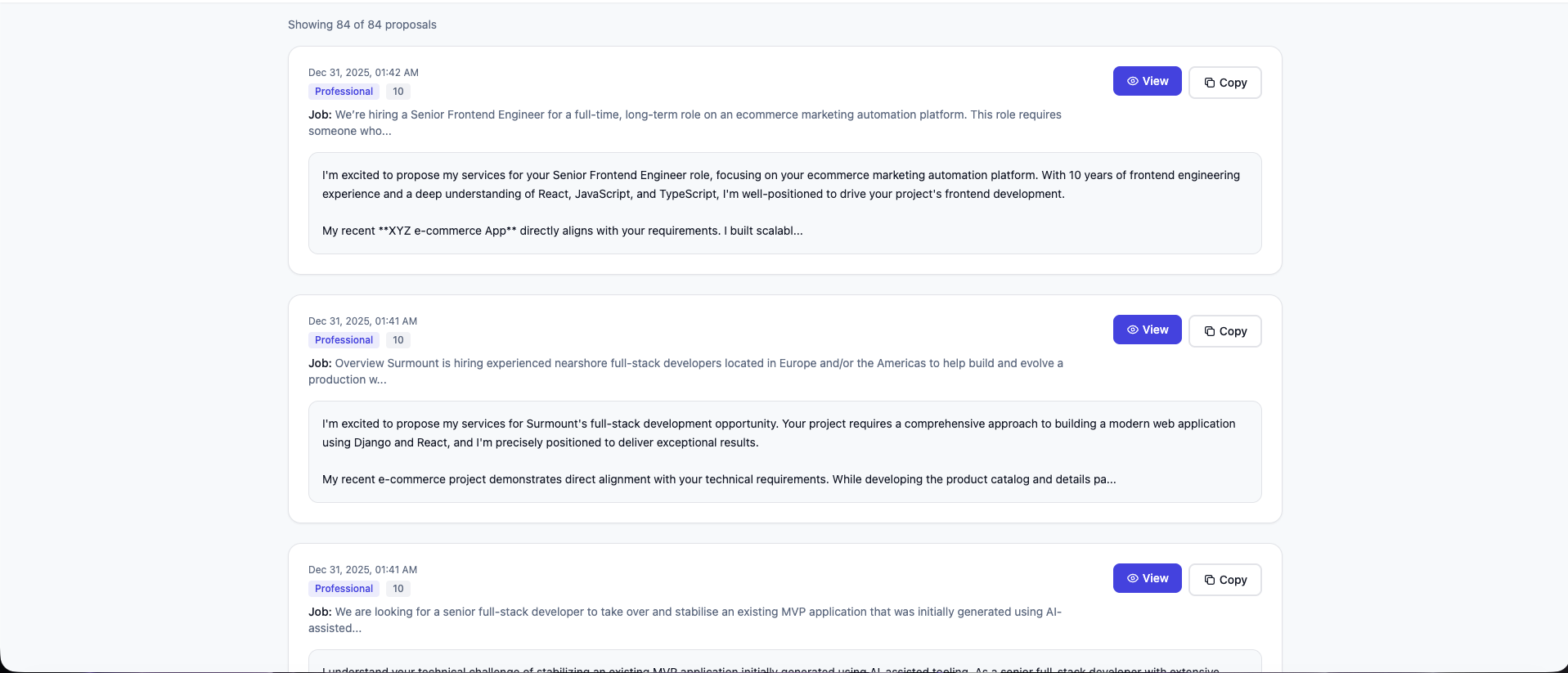
Proposal history page showing multiple proposals created quickly with timestamps. Generate multiple proposals in minutes with zero copy-paste friction.
How to Implement This Approach
If you want to eliminate copy-paste friction, here's how browser extensions work:
1. Install a Browser Extension (1 minute)
- Visit the Chrome Web Store
- Search for proposal tools or job scanning extensions
- Install the extension
- Confirm installation
2. Connect to Your Account (30 seconds)
- Click the extension icon
- Connect to your proposal tool account
- Extension is now ready to use
3. Scan Your First Job (30 seconds)
- Visit any Upwork job post
- Click the extension icon
- Click "Scan Job Post"
- Job data is automatically extracted
4. Generate Proposal (2-5 minutes)
- Scanned data automatically fills your form
- Click "Generate Proposal"
- Review and customize
- Copy and submit
Total setup: 2 minutes. You'll save that in your first scan.
Tips for Maximum Efficiency
- Keep Extension Connected: The extension remembers your connection, so scanning is always one click away.
- Use Keyboard Shortcuts: Some browsers support keyboard shortcuts for extensions—check your browser settings.
- Batch Scanning: Scan multiple jobs, then generate proposals in batch (though we recommend personalizing each one).
- Review Scanned Data: Always review the auto-filled data to ensure accuracy (though automated extraction is typically 99%+ accurate).
Conclusion
Copy-paste friction doesn't have to be part of your workflow. Browser extensions can eliminate it entirely—one click scans any Upwork job and auto-fills your proposal form.
The result? 90% less friction, zero errors, and a workflow that actually makes applying to jobs enjoyable. You'll send more proposals, win more projects, and spend less time on busywork.
The key principle is automating job data extraction through browser extensions that read page structure and extract relevant fields. This eliminates manual copy-paste and context switching entirely.
If you want to implement this approach, tools like Proposely offer browser extensions that can help automate the process. You can try it free to see if this approach works for your workflow.
Want to learn more? Check out our other guides: